A MultiTracks download in. A finished, stage-ready Live 12 song out.
Section 01
What BuildAble 12 does
A MultiTracks download is built for compatibility, not for your stage. It's a Live 8
session with the stems, a tempo map, and not much else. BuildAble 12 rebuilds it as a finished
Live 12 song — click, spoken guide cues, sections, lyrics, routing, OSC — laid into your AbleSet
template and ready to play.
What goes in
An unzipped MultiTracks.com download: a folder holding MultiTrack.als next to a
MultiTracks folder of stems. Change nothing about it.
What comes out
A complete Ableton Live 12 project folder — the session, the stems copied in beside it, the album
art, and your AbleSet data. Open it and play it. There is no "now finish the rest by hand" step.
It doesn't transpose. BuildAble 12 builds the song; it doesn't change its key.
What it does do is tag your drums and loops [noshift] — so when you later transpose that
song in StitchAble, the pitched instruments move and your grooves don't.
The two-app pair
BuildAble 12 makes songs. StitchAble stitches them into a setlist. They share one engine and one
sound library — the guide voice and click sounds you set up in one show up in the other, because
they're the same files on disk.
It works in batches
Direct it at a folder of downloads and every song is listed. Adjust the ones that need it, leave the
rest on defaults, and convert the whole Sunday in one pass — same lanes, same cues, same outputs, every
song.
Section 02
Install & activate
Two steps, once per Mac.
Before you start
macOS, Apple Silicon or Intel.
Ableton Live 12 to open the converted sessions.
AbleSet — recommended. The sessions are built for it, but it isn't required to
convert songs or to open them in Ableton.
Your MultiTracks.com downloads, unzipped.
1 · Install
Open the DMG, drag BuildAble 12 to Applications, and launch it. It's
Developer-ID signed and notarized by Apple, so it opens with a normal double-click.
2 · Activate
First launch shows the activation gate — the converter is locked until you activate, and there's no
limited trial. Paste the license key from your purchase receipt and press
Activate.
The key is checked online once. After that the app runs offline, permanently.
One license activates on 5 machines.
Out of seats, reinstalling, or moving machines? Email the support address on the activation
screen and a seat gets freed.
If the key is rejected, the message tells you which problem it is: a typo, all activations used, a
refunded purchase, or the license server being unreachable. Only the last one is worth retrying.
Section 03
Setup — the free pack
BuildAble 12 builds a MIDI click and spoken guide cues. It needs sounds to build
them from — and MultiTracks gives them away free.
Run setup
Open Settings (the gear, top-right) and press Set Up…. Point it at
the downloaded Click and Guide Samples pack and it installs the voices and click sounds into
your Ableton User Library.
Don't have the pack? Get the free pack in Settings opens the MultiTracks download
page. Grab it, then run Set Up.
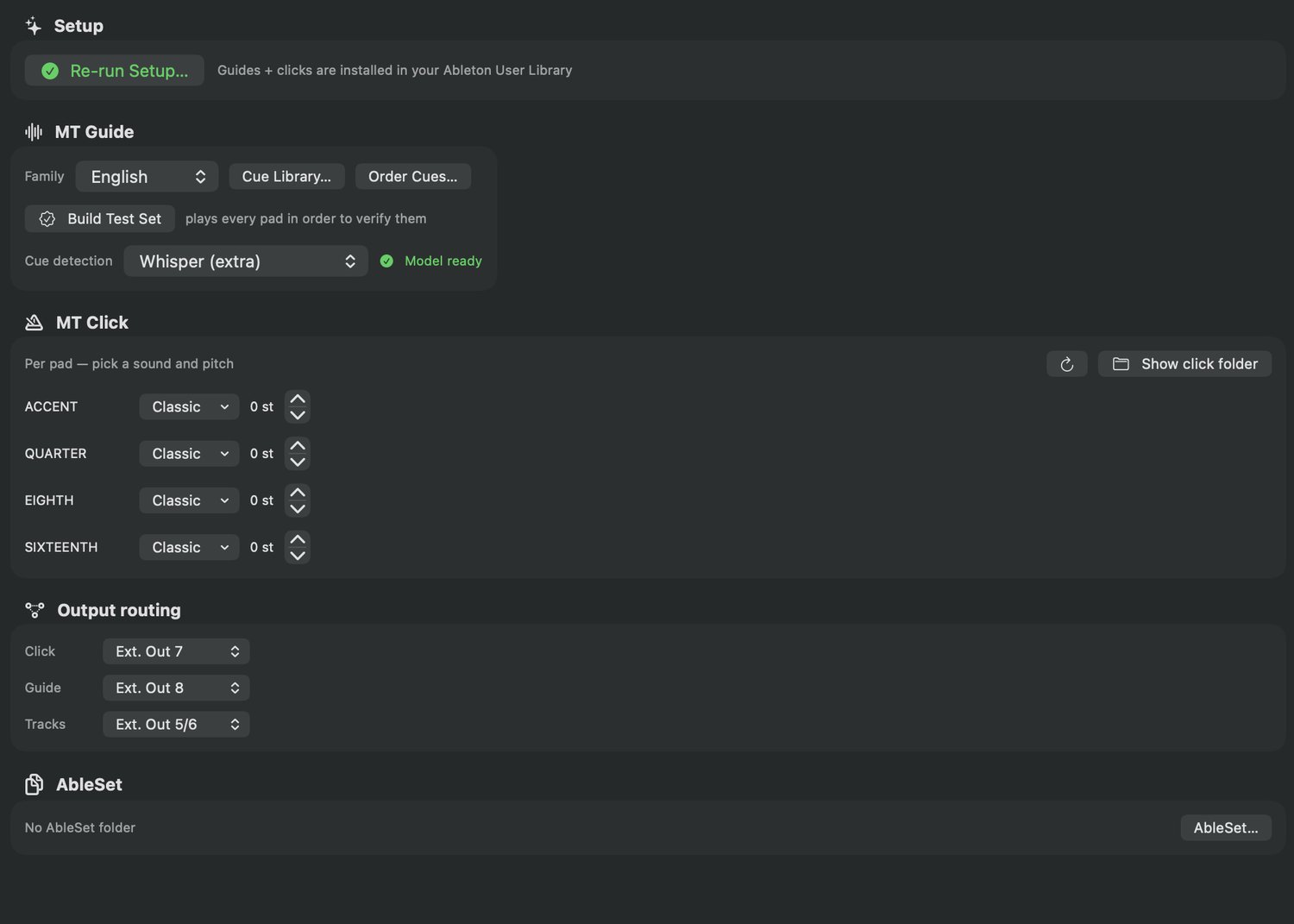
When it's done, Settings says the guides and clicks are installed and the button becomes
Re-run Setup… with a green check.
This is not optional. Without the pack there is nothing for the click pads to
play and no cue recordings to match your guide stem against — which is most of what you bought the
app for. It's free, and you install it once.
Guide families
A family is a voice: English, Spanish, French, Portuguese, or one you build
yourself. Cues resolve strictly inside the chosen family, so a Spanish set can never pull an
English word.
Built-in cues live in the family's MAIN folder.
Your own recordings go to _Imported — import one and it's available everywhere.
The sound library is shared with StitchAble. Set the voice and the click sounds up
in either app and both use them. One install, two apps.
Section 04
The main window
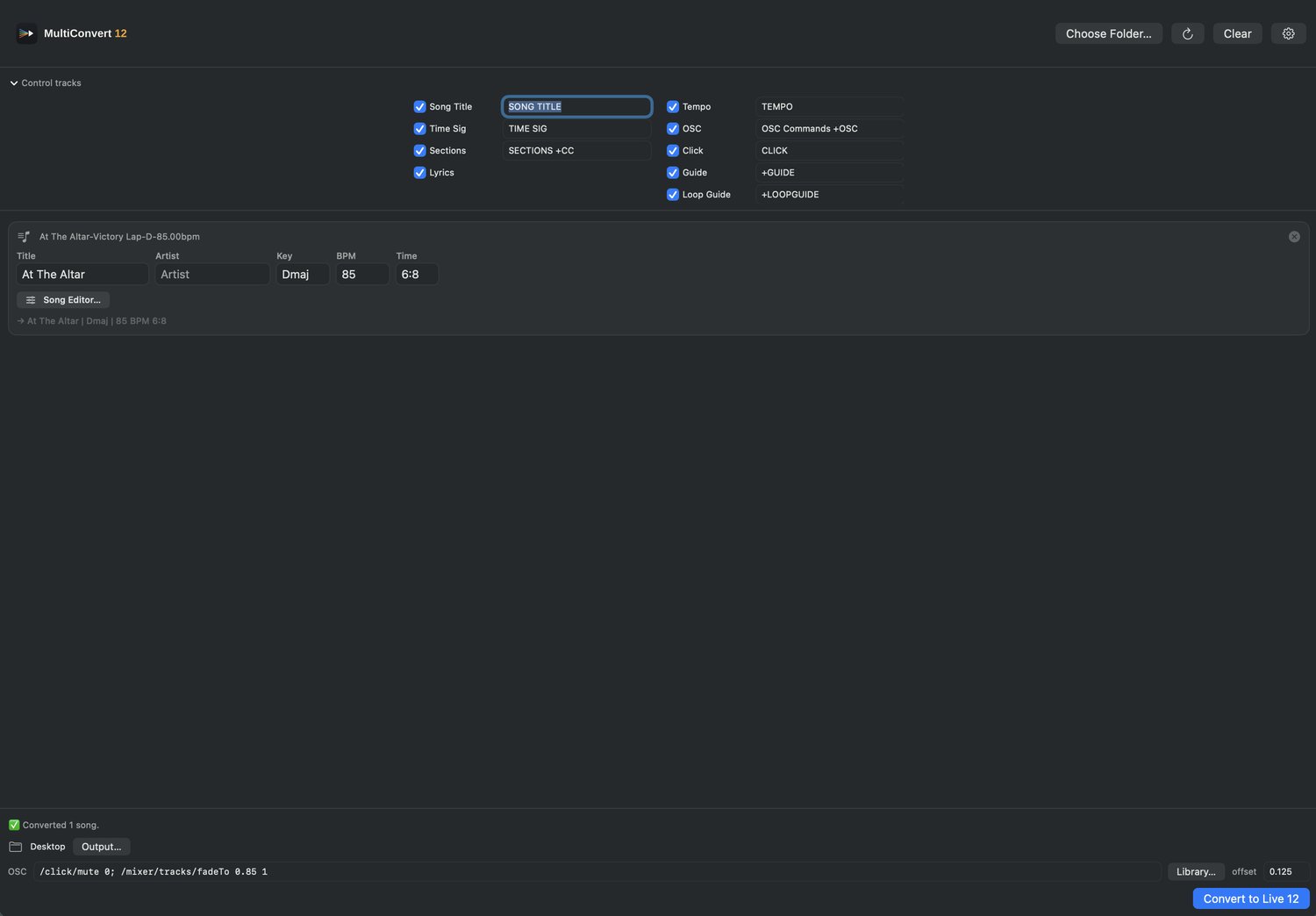
One window does the whole job: choose a folder, glance down the list, press Convert.
Control tracks up top · a card per song · OSC and Convert along the bottom
Header
Choose Folder… — where your downloads are.
↻ Refresh — re-scans the folders you've already used and adds anything new.
Clear — empties the list.
Gear — Settings (Section 17).
Control tracks
The collapsible strip at the top decides which lanes get built, and what each one is called
(Section 07). Set it once — it persists.
The song list
One card per detected song. Fill in what you want, open the Song Editor for the songs that need it,
ignore the rest.
Footer
Status line — what was found, what's converting, what happened.
Output… — where converted songs get written.
OSC — the global default command, the Library…, and the offset
(Section 16).
Convert to Live 12 — or ⌘↩.
Section 05
Adding songs
Direct BuildAble 12 at a folder. It finds the downloads inside and ignores everything
else.
What counts as a download
A folder containing MultiTrack.als sitting directly beside a MultiTracks
folder of stems. That exact signature is how the app locks onto real downloads and leaves your other
projects alone.
Build My Life-Worthy of Your Name-G-70.00bpmthe download└ MultiTrack.alsa Live 8 session└ MultiTracks/the stems
Adding them
Choose Folder…, or drag a folder onto the list.
If the folder is a download, it's added. If it isn't, the app looks one level
down and adds every download it finds. It doesn't burrow deeper, and it skips hidden
folders.
Every folder you use is remembered. ↻ Refresh re-scans them and adds only what's
new — download three more songs on Saturday, hit refresh, and there they are.
Unzip first, and change nothing. A download that's still zipped, or one whose
insides have been rearranged, won't be recognized — the signature is the whole detection rule.
Section 06
The song card
Each card is one song, and everything on it is editable before you convert.
What's on it
Status icon — see below.
The source folder name, in gray, so you can tell two versions of a song apart.
Title · Artist · Key · BPM · Time — auto-filled where the download says, blank
where it doesn't. Artist is left for you, because MultiTracks doesn't reliably say.
Song Editor… — everything else about this song (Section 09).
Bottom line — the output folder name this song will get, previewed live as you
type.
Status
Icon
Meaning
♪ gray
Ready. It'll build on the next Convert.
◌ spinner
Working.
✓ green
Done — and it's a button. Click it to re-arm the song so it builds again. Until you do, Convert skips it.
⚠ amber
Failed. The bottom line says why.
The green check is the thing people miss. Converted songs are deliberately skipped
so a second Convert doesn't rebuild your whole Sunday to fix one song. Click the check on the song you
changed, and only that one rebuilds.
Section 07
Control tracks
These are the lanes BuildAble 12 builds into every song. Turn one off and it isn't
there. Rename one and it's called whatever you called it.
Lane
What it builds
Song Title
The title label AbleSet shows for the song.
Tempo
A clip per tempo segment, plus the master tempo automation.
Time Sig
A label per meter segment, plus the master meter automation.
Click
The meter-aware drum-rack click — accent, quarter, eighth, sixteenth.
Sections +CC
One label clip per section, colored, plus arrangement locators.
+GUIDE
The spoken guide lane (Section 11).
+LOOPGUIDE
Re-announces the current section at each boundary — for when you loop it.
OSC Commands +OSC
Clips whose names are OSC messages AbleSet fires (Section 16).
Lyrics
A lyrics text lane. Off by default.
Numbers
A chord-numbers text lane. Off by default.
Tempo and Time Sig are always built, even with their toggles off. The toggle only
hides the label lane — the automation that actually drives the song is never optional,
because a song without its tempo map isn't a song.
Section 08
Converting
Press Convert to Live 12 — or ⌘↩. If you haven't set an
output folder, it asks for one.
What happens
Every song that isn't already done builds. Finished ones are skipped.
Each card goes working → done (with its output name) or failed (with
the reason).
You get a summary — "Converted 11 songs" — and Finder opens on the result.
Everything is done first, then written. Convert doesn't touch your downloads. It
reads them and writes new project folders somewhere else, so a failed convert costs you nothing but
the time — run it again.
Rebuilding a song
Changed a cue, fixed a key, re-routed a stem? Click that song's green check to
re-arm it and press Convert. Only that song rebuilds.
Section 09
The Song Editor
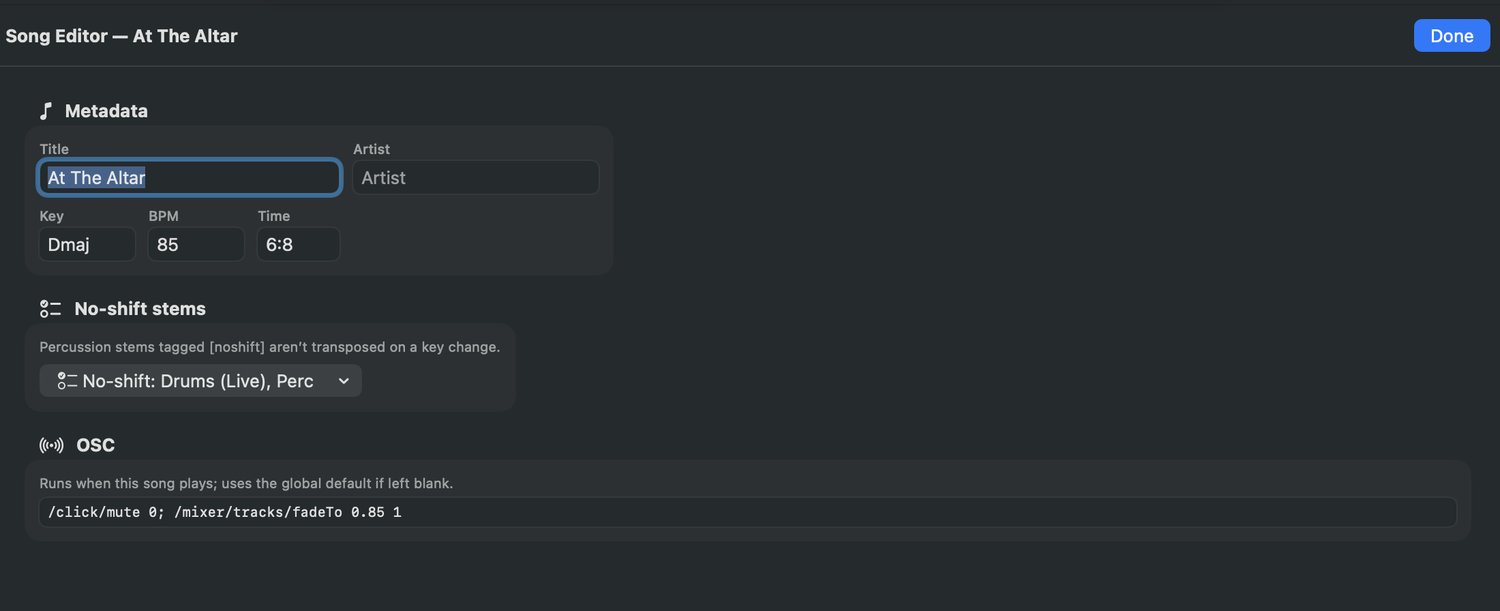
Everything about one song, in one window. Convert on defaults and never open it — or
open it and shape the song exactly.
Metadata · no-shift stems · a per-song OSC command
Metadata — title, artist, key, BPM, time signature.
No-shift stems — percussion and loops, tagged [noshift] so a later
key change in StitchAble leaves them alone. They're detected for you; the picker is there for the ones
it can't guess (Section 01).
Track names — rename the imported stems (Section 10).
Per-song OSC — a command just for this song, overriding your global default
(Section 16).
Lyrics & Chords — the banner editor (Section 13).
Section Notes — a director's note per section (Section 14).
Everything you set is remembered against that song, so closing the editor and coming back loses
nothing.
Section 10
Renaming the tracks
MultiTracks names its stems the way MultiTracks names things. You probably don't call
them that. Rename them once, by rule, and every song you ever convert comes out speaking your language.
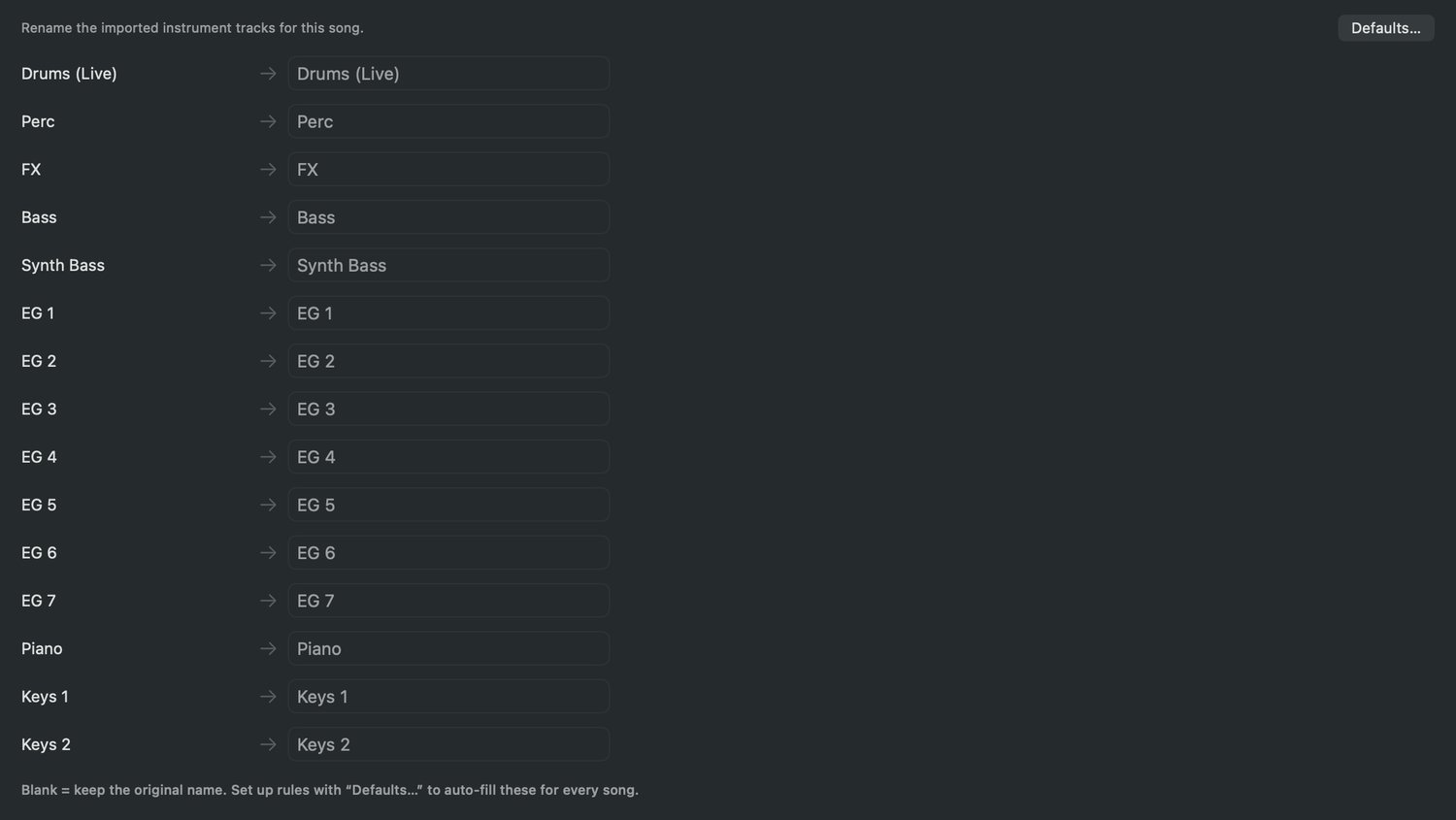
The download's name on the left. Yours on the right. Blank keeps the original.
Per song
In the Song Editor, every imported stem is listed with a field beside it. Type what you want the
track called in Live. Leave it blank and the original name stays — you only fill in the
ones you care about.
By rule, for every song
Defaults… is the part that matters. Set up rules there and they auto-fill the names
for every song you convert, so you're not retyping the same twenty stems every Sunday.
This is the same wildcard system the returns use. A rule on EG _
catches EG 1 through EG 7 — _ stands for a number. Write the rule once;
it holds for every song, forever.
Names matter more than they look like they do: they're what you read on a dark stage, and they're
what the routing rules match against when they decide which return a stem lands on (Section 15).
Section 11
Guide cues
The +GUIDE lane is the most valuable thing BuildAble 12 builds, and the
hardest. It's assembled in three layers — and they never collide, because the reliable ones always win.
Why it's layered
The count-in and the section cues come from things the song knows — its meter and its
locators. Those can't be wrong. Performance cues come from listening to the guide stem, which is fuzzy
by nature. So the skeleton is built from fact, and detection is only ever allowed to fill the gaps
between. A section name can never be produced by detection, and nothing ever stacks on the same beat.
The count-in
Synthesized from the meter, in meter beats — six of them in 6/8, not four. The last bar
names the section you're about to play, then counts you into the downbeat.
Section cues
One cue, one bar before each locator, named from the locator — and spelled the way your
library spells it, so you hear "post chorus" and not the pad's abbreviation.
Performance cues
Only the spoken performance vocabulary: BUILD, DRUMS IN, HITS, ALL IN, SWELL, BREAKDOWN, TURNAROUND,
VAMP, TAG. Two independent detectors find them:
Audio fingerprint — the family's cue recordings matched against your song's guide
stem. MultiTracks reuses the same recordings across songs, so the match is near-exact.
On-device speech — the guide is transcribed and words are mapped to cues. Choose
the engine in Settings: Off, Apple Speech (the default), or Whisper.
Anything spoken that still can't be named is surfaced as a blank slice for you to
label — it isn't silently dropped.
Nothing leaves your Mac. Both the fingerprint match and the speech recognition run
on-device.
The Guide Cues editor
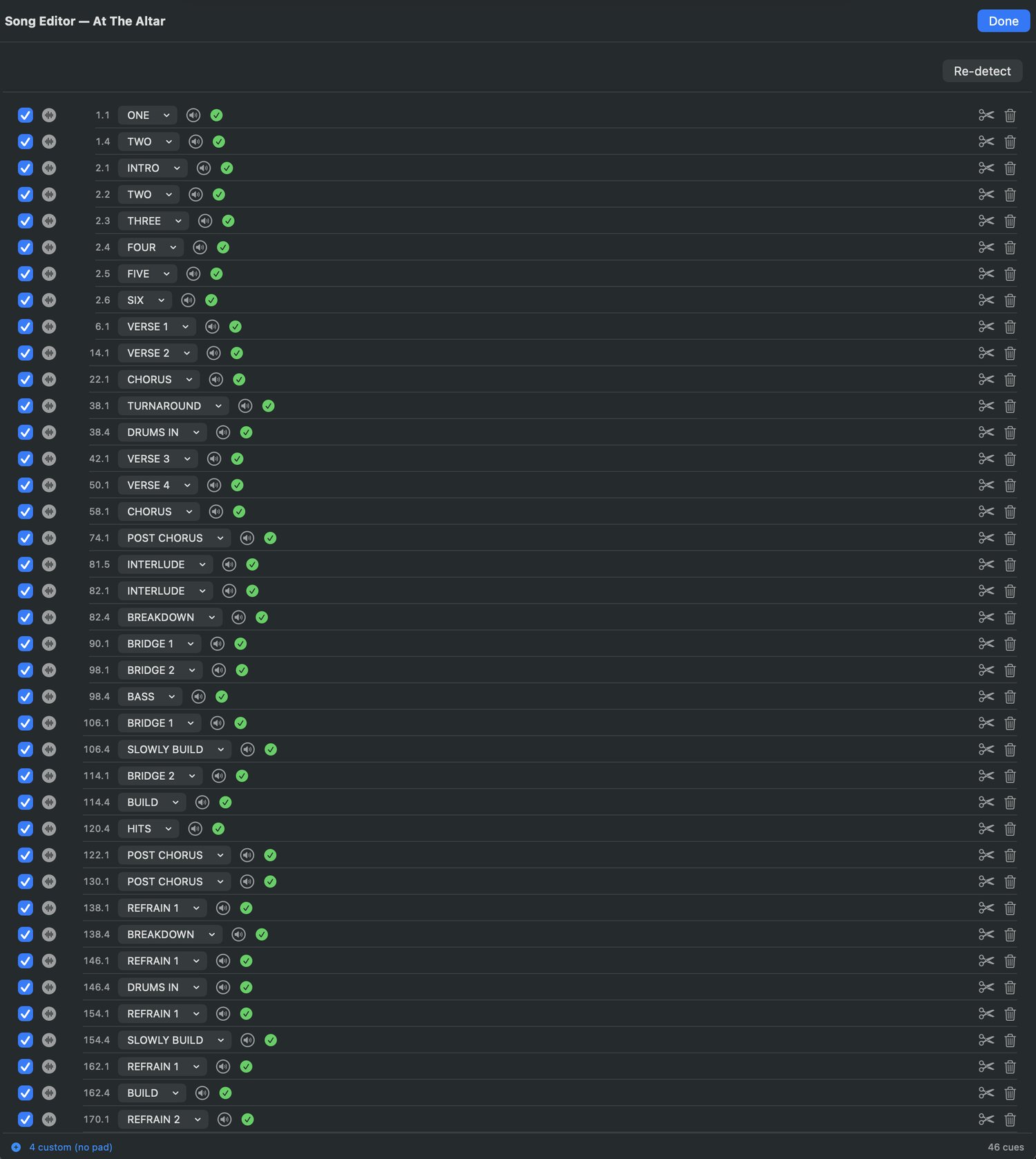
46 cues, every one auditionable, re-cuttable, and re-labelable
Every cue is a row: play auditions that slice of the actual song, the position reads
in bar.beat (2.2 = bar 2, beat 2 — the same way Ableton and AbleSet count),
the dropdown picks the cue, the speaker plays the chosen sample so you can compare, and the status dot
tells you where you stand:
green — matched, with a sample to play.
blue + — a custom cue. Tap it to save it into your library, and it'll match by
itself next time.
orange — heard, but unnamed. It needs you.
Re-detect runs the whole pass again.
Section 12
The slice editor
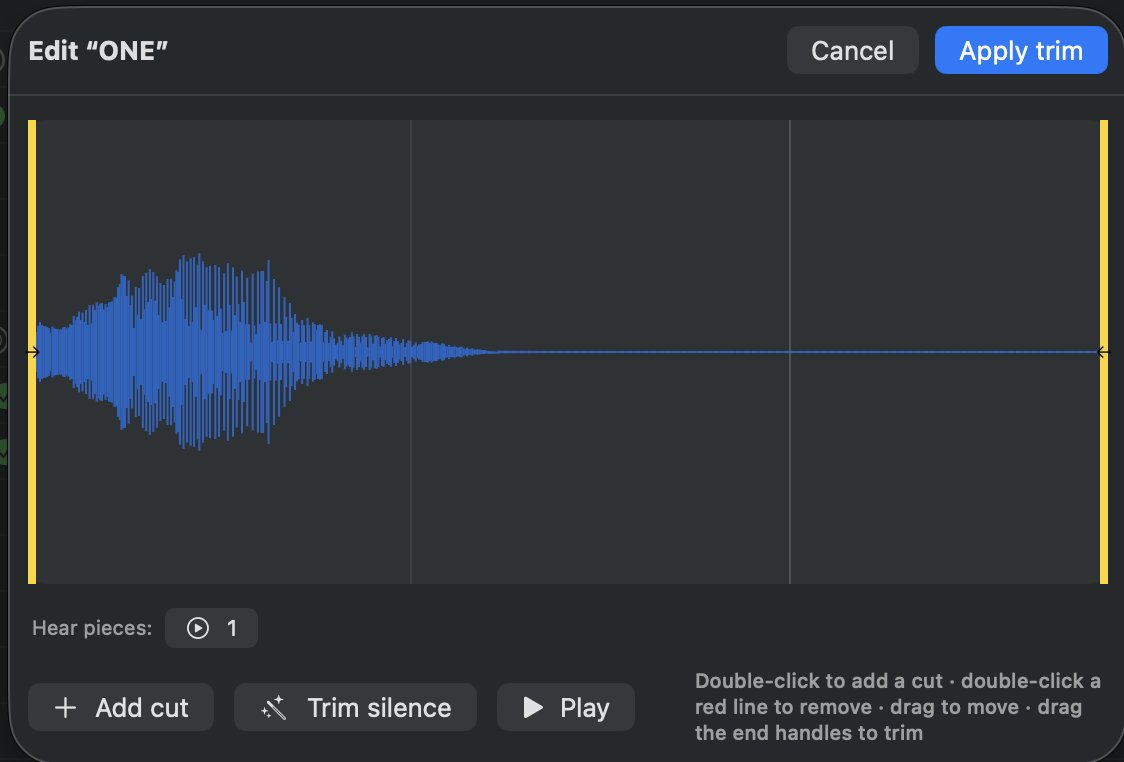
Sometimes the guide says two things in one breath, and the detector hears one blob.
The scissors button opens the waveform and lets you cut it yourself.
Drag the handles to trim · double-click to cut · hear each piece before you commit
Drag the yellow end-handles to trim the front and back.
Double-click the waveform to add a cut. Double-click a red line to
remove one. Drag a cut to move it.
Trim silence does the obvious thing automatically.
Audition each piece before you commit.
Apply splits the cue into those pieces.
Cut a phrase apart once, label the pieces, and tap + to save them into your family.
From then on the detector recognizes them on its own — every song you convert after that gets better.
Section 13
Lyrics & chords
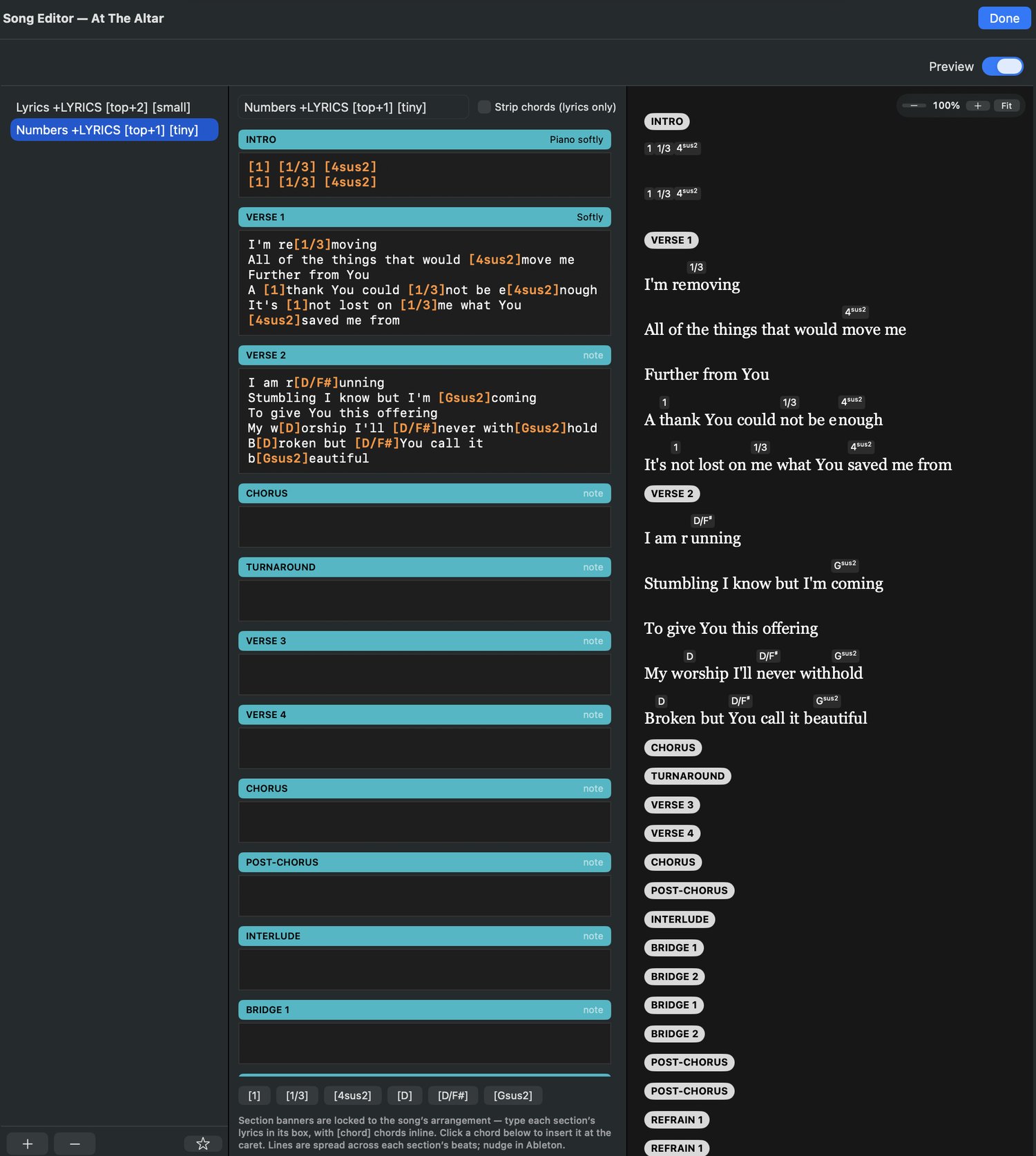
Type the words under each section and AbleSet shows them on the big screen. The
structure is fixed for you, so you can't put the chorus in the wrong place.
Locked section banners · chords inline · and on the right, exactly what AbleSet will show
How the editor is built
Section banners are locked. Every locator in the song appears as a full-width
banner, in order. You can't add, remove, or reorder them — they mirror the arrangement exactly,
because the arrangement is the truth.
One box per section. Type that section's words in the box beneath its banner. The
boxes grow as you type.
Chords go inline in brackets: [G], or [1] for numbers.
The chord palette under the editor holds the chords already used in this song —
click one to drop it at the cursor.
Lanes, and the strip toggle
You can build more than one text lane. A Lyrics lane strips the [chords]
out and shows plain words; a Numbers lane keeps them. Same typing, two lanes, two
audiences — the singer and the band.
The preview is the real thing
The right-hand panel shows exactly how AbleSet will render the lane: section pills, chords floated
over the right syllables, and overflow turned red when a line won't fit the screen.
You'll know it's too long before you're on stage looking at it.
Size classes go in the lane name — [tiny], [small],
[large]. And Add my default tracks seeds the lanes you always build.
Section 14
Section notes
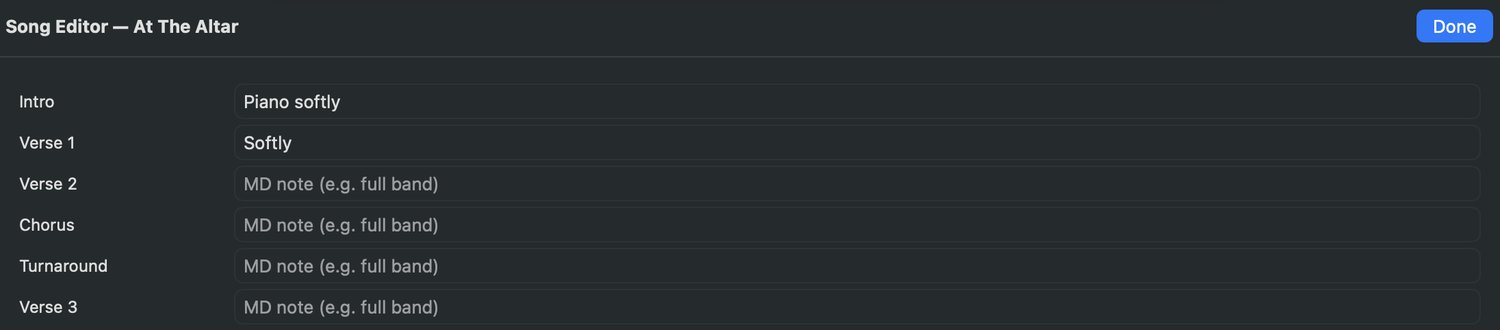
A word to yourself, per section. full band. acapella. drums only.
One line per section. Blank is fine.
Edit them on the right of each lyrics banner, or in the Section Notes sheet — they're the same field.
On convert they're appended to the section label:
INTRO {full band}
Leave one blank and nothing is added. It's a small feature that survives contact with a real Sunday:
the thing you'd otherwise be whispering across the stage is written on the screen.
Section 15
Returns & routing
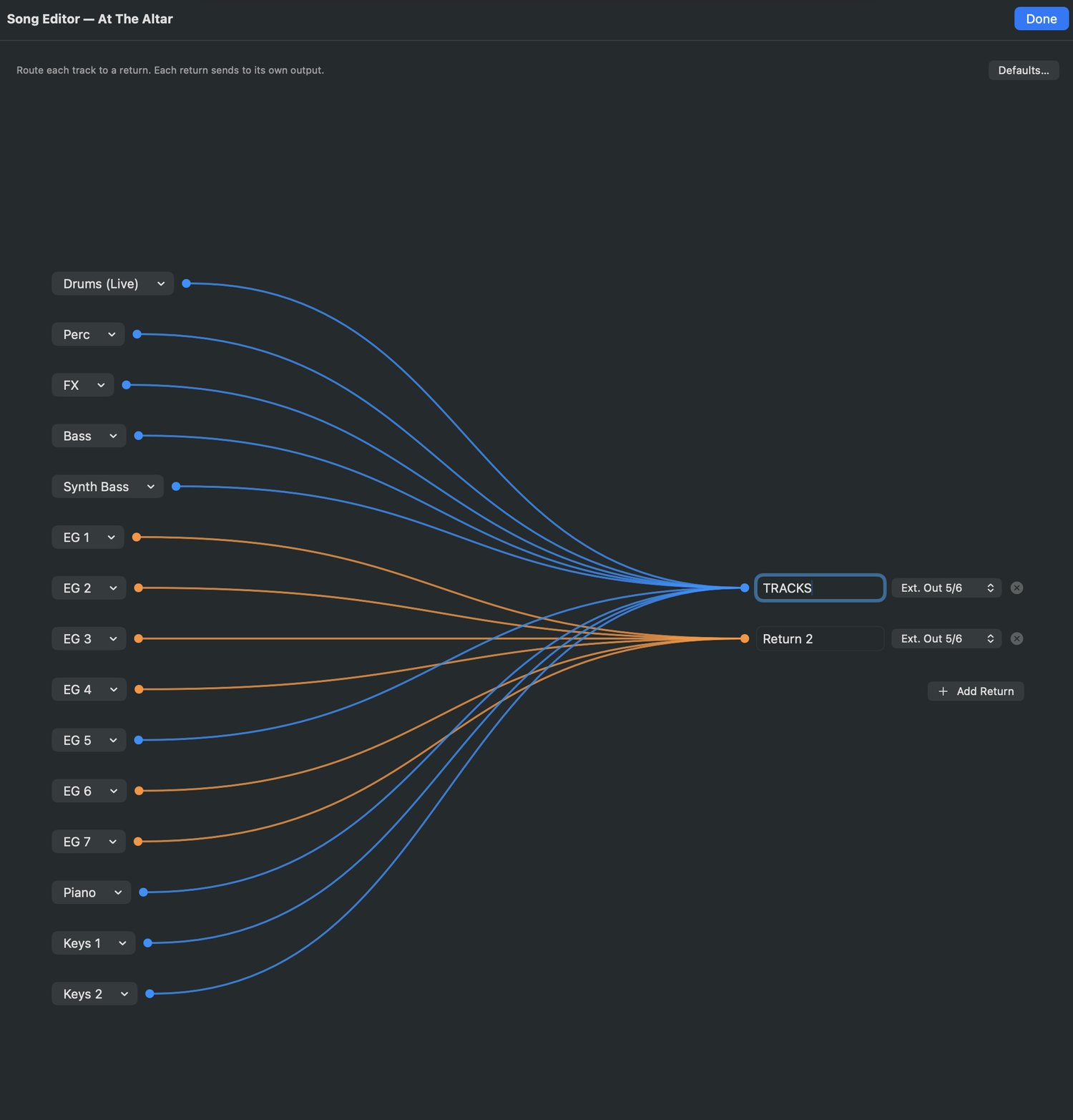
A return is a bus your stems send to. The return's output decides where that
audio physically leaves the computer. The patchbay wires the two together.
Every stem, wired. Colored by the return it lands on.
Rename any return, set its output, add or delete returns.
Colored connectors show every stem's destination at a glance.
Send each track to its own bus and output, or flow them all through one — whatever your rig needs.
Defaults do the work
Every new song starts from a global template, so you set this up once rather than per song:
The default return is TRACKS +G:TRACKS → Ext. Out 5/6.
Routing rules can send stems to a return by name — KEYS _ catches
KEYS 1, KEYS 2, and so on (_ is a number wildcard).
Anything unmatched lands on the first return. Nothing gets orphaned.
Click, Guide, and Tracks each have their own global output in Settings — by default
Ext 7, Ext 8, and Ext 5/6.
Section 16
OSC commands
AbleSet can be told what to do by a clip name. BuildAble 12 builds those clips for
you, so a song can start its own loop, set its own tempo, or fire a notification when it hits a section.
How it works
An OSC lane holds clips whose names are messages. AbleSet reads the name and fires it.
Chain several with semicolons:
/global/play; /global/tempo 120
The global default, in the footer, applies to every new song.
Per song, in the Song Editor, overrides it.
The OSC Command Library is a searchable catalog of 50+ built-in AbleSet commands
— playback, loop, setlist, lyrics, mixer, interface, UI, notify, MIDI, devices — plus
My Commands, the ones you save. Click one to append it, edit the arguments, save it.
Offset nudges when the clip fires relative to the beat. Default 0.125.
Both fields type-ahead, so you don't have to remember the syntax.
Section 17
Settings
The gear, top-right. Set this up once and every song you ever convert inherits it.
Set Up… / Re-run Setup… installs the free pack (Section 03), with a link to get it
if you don't have it.
MT Guide
Family — the voice. Cues resolve strictly within it.
Cue Library… — browse and play every cue you own. Add Cue…
imports your own recording into that family, and it's available everywhere from then on.
Order Cues… — the display order. Inside it, Reorder drum rack…
permutes the actual pad notes (it asks first, and it applies to future conversions).
Build Test Set — a session that plays every cue you own, in order. Ten seconds to
hear your whole voice.
Cue detection — Off (audio match only), Apple
Speech (the default), or Whisper (an on-device model, downloaded on first
use). If Whisper isn't available it falls back to Apple Speech on its own.
MT Click
Per pad — accent, quarter, eighth, sixteenth — pick the sound and the
pitch (±24 semitones). Show click folder opens the folder so you can
drop your own clicks in.
Output routing
Click (Ext 7), Guide (Ext 8), Tracks (Ext 5/6) —
Master, or any external mono out or stereo pair.
AbleSet
Choose an AbleSet template folder and it's copied into every song you convert. This
is what makes a converted song open ready for your rig rather than ready for a blank Ableton.
Section 18
What gets built
Everything below is written into the session, from the download plus what you set.
What it reads
The folder name → title, key, BPM.
The Live 8 session → the tempo map, the meter map, the section locators, the stem
order.
The MultiTracks folder → the stems. A guide stem and a click stem are recognized
and treated specially.
What it writes
SONG TITLE, TEMPO and TIME SIG — labels plus the
master automation that actually drives the song.
CLICK — meter-aware, per tempo and meter segment, on your click output, playing
the sounds and pitches you chose.
SECTIONS +CC — a colored label per section, plus arrangement locators.
+GUIDE / +LOOPGUIDE — the three cue layers (Section 11).
OSC, Lyrics, Numbers — if you enabled them.
The stems — one track each, grouped, [noshift] where tagged, sending
to the returns you set.
Song length comes from the longest stem, snapped to the nearest bar — including
when the song slows down at the end. And every sample reference is healed to your installed pack, so
the session opens with no missing media on any machine.
Section 19
The output folder
A self-contained project folder. Move it, back it up, hand it to someone — it works.
Build My Life - Passion | Gmaj | 70 BPM 4/4/└ Album.jpgcarried from the download└ _MultiTracks/the stems, copied in└ Build My Life - P Project/the Live 12 project
Inside the project folder is the .als, Ableton's project info, and your
AbleSet data if you set a template.
The stems are copied, never moved, and referenced by relative path. Your original
download is untouched, and the new folder doesn't depend on it — you can archive the download or
delete it.
That folder name is also exactly what StitchAble reads: title, artist, key, BPM,
meter. Convert here, and the song is already named the way the setlist builder wants it.
Section 20
Troubleshooting
Most of what looks wrong is the app telling you something.
What you're seeing
What it means
A folder isn't detected
It needs MultiTrack.als sitting directly next to a MultiTracks folder. Still zipped? Rearranged? That's why. Or point one level up and let the scan find it.
A song won't rebuild
It's marked done and being skipped on purpose. Click its green check to re-arm it.
A cue is blank or unlabeled
Detection heard something it can't name. Label it in the Guide Cues editor and tap + to save it — it'll match on its own from then on.
A cue is the wrong voice
Check the Family in Settings. Cues resolve strictly inside the chosen family.
"Whisper model unavailable"
It falls back to Apple Speech automatically. The model downloads on first use — check your connection, or just use Apple Speech.
Gatekeeper blocks the app
The DMG is notarized, so this shouldn't happen. If it does, right-click → Open, once.
The license won't activate
Email the support address on the activation screen. A person answers.
Nothing you do here can damage a download. BuildAble 12 only ever reads them.
If a convert goes wrong, fix the setting and convert again — there's nothing to undo.